
YTCliply
YTCliply Guide

How to Trim, Download, and Share YouTube Clips

YTCliply begins with the same two steps: add a supported public YouTube video and select the exact range you need. Then download that range as MP4 or MP3, or create a link that plays only the selected section.

Common step 2

Select the Exact Part You Need

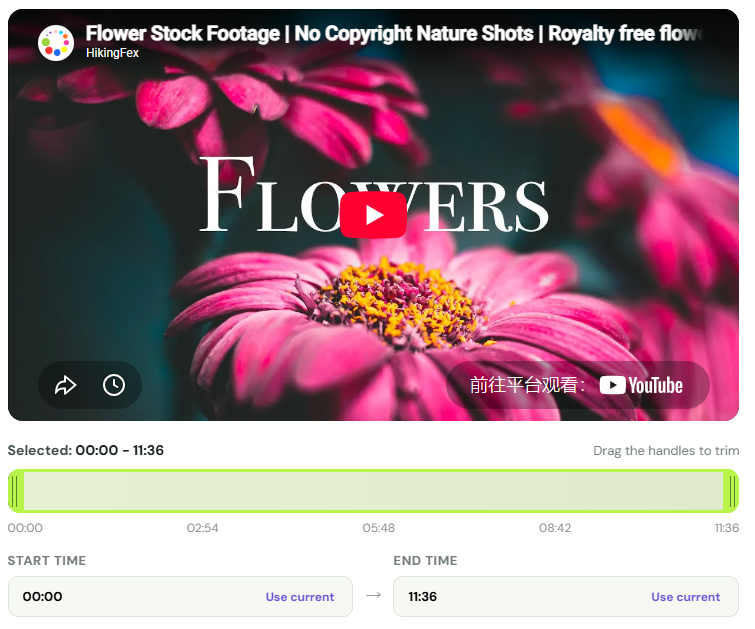
After the video loads, choose where the section should begin and end. These time controls work in a similar way in both Cut & Download and Trim & Share.

Choose a video range with the timeline handles, start time, and end time controls.
  1. Find the beginningPlay or seek to the moment where the useful section begins. Drag the start handle, enter a timestamp, or use the current playback position.
  2. Set the endpointMove to the end of the section and adjust the end handle or timestamp. The start time must be earlier than the end time.
  3. Preview and refineCheck that the selection begins and ends cleanly. Small adjustments help avoid clipped words, missing context, or unnecessary content.

If you do not select a shorter range, both Download and Share use the entire video.

Time format: Use values such as 00:45, 01:24, or 01:05:30.

Choose your outcome

What Do You Want to Do With the Selected Range?

The video and time range are ready. Continue with the download path when you need a standalone file, or use the share path when you only need a focused playback link.

Download path - Step 3A

Download the Selection as MP4 or MP3

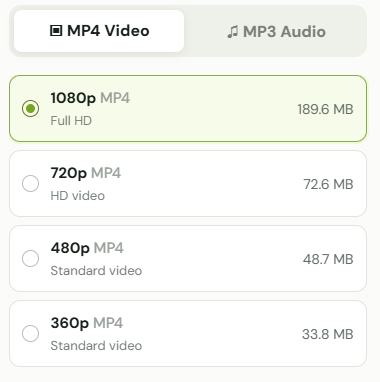
Use Cut & Download when you need a standalone file. Choose MP4 to keep the video and audio together, or MP3 when you only need the sound.

Choose MP4 Video or MP3 Audio, then select an available quality.
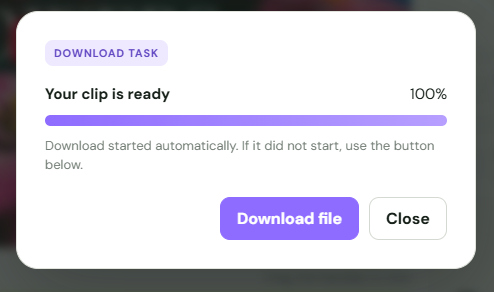
Completed download task showing that the clip is ready, with a Download file button.
  1. Choose MP4 Video or MP3 Audio.
  2. Select an available quality.
  3. Check the selected time range.
  4. Select Download selected clip.
  5. Keep the page open until the file is ready.
MP4

Keep Video and Audio

MP4 is suitable for offline viewing, presentations, authorized editing projects, and any task where the picture matters.

Available qualities depend on the source video and current processing limits. A displayed source-size estimate may be larger than the final trimmed file.
MP3

Keep Audio Only

MP3 is useful for an authorized section of a lecture, interview, speech, podcast, or other audio-focused material.

MP3 creates a separate audio file rather than a video without a picture. Available audio options depend on the source.
Share path - Step 3B

Create a Link to the Selected Video Range

Use Trim & Share when you want someone to watch the selected section without creating or sending a separate media file.

Choose playback speed, looping, autoplay, and YouTube control options before creating a share link.
Generated share URL with Copy link and Open link actions.
  1. Choose playback optionsSelect a playback speed and, when useful, enable looping, autoplay, or hidden YouTube controls.
  2. Create the linkSelect Create link. The generated URL stores the video ID, selected range, and playback preferences.
  3. Check the resultOpen the link once to confirm that it starts and ends at the intended moments.
  4. Copy and shareCopy the verified link and send it to the intended viewer.
Options

Shape the Playback Experience

Use speed, looping, autoplay, and player-control settings only when they make the selected range easier to watch.

Link

How the Link Works

YTCliply does not download or re-upload the video in share mode. Viewers must be able to access the source, and the link may stop working if that video becomes unavailable.

Create a Share Link
Compare the outputs

MP4 vs MP3 vs Share Link

The best choice depends on whether you need a file, whether the picture matters, and whether the result must work without the original video.

FeatureMP4MP3Share link
Includes videoYesNoYes
Includes audioYesYesYes
Creates a standalone fileYesYesNo
Suitable for offline useYesYesNo
Depends on the source after creationNoNoYes
Can store loop and speed settingsNoNoYes
Requires file processingYesYesNo
Before you begin

Supported Links and Video Limitations

A valid video link is the first requirement, but the source must also be publicly available and within the processing limits for the tool you choose.

Supported link types

  • Standard youtube.com/watch video links
  • youtu.be short links
  • YouTube Shorts links
  • An individual video opened from a playlist

Not supported or may be unavailable

  • Channel, profile, home, and search pages
  • Playlist links that do not identify one video
  • Private, deleted, members-only, age-restricted, or region-restricted videos
  • Ongoing or scheduled live streams
Download limit

The untrimmed source file must be smaller than 1000 MB

Cut & Download checks the source file before trimming. Selecting a shorter time range does not bypass the 1000 MB source-file limit.

Important: A supported URL format does not guarantee that a video can be loaded. The source must also remain public and available for playback.

Solve common problems

Troubleshooting

Start with the original video and URL, then check the selected range and available output options.

The link is not recognized

Make sure the URL points to one specific video rather than a channel, search page, or playlist-only page.

Open the video on YouTube and copy its direct watch, short, or Shorts URL.

The video cannot be loaded

Confirm that the source video still opens publicly on YouTube.

Private, deleted, restricted, members-only, or unavailable videos may not load in YTCliply.

The start or end time is invalid

Use a timestamp such as 01:24 and keep the start earlier than the end.

Neither timestamp can be outside the video's duration.

A format or quality is missing

Not every source video provides the same video and audio options.

The untrimmed source file for that format or quality may be 1000 MB or larger, so the option may not appear. Try a smaller available quality or another format.

Processing is taking too long

Keep the tab open while the task is running and check your network connection.

If the task times out, retry the request or choose a shorter range or different available format.

The download did not start

Use the manual Download file button in the completed task window.

Check whether the browser blocked automatic downloads.

A shared link stopped working

Open the original video and confirm it is still public and available for embedded playback.

The source may be restricted for the viewer's account, age, membership, or region.

Privacy and processing

Only the Information Needed for the Request

YTCliply works without requiring an account. Download requests send the video identifier, selected range, format, quality, and task details needed to prepare the file.

Task information and generated files may be retained temporarily and deleted automatically. Share mode does not create or upload a copy of the source video.

Read the Privacy Policy
Responsible use

Process Content Only When You Have the Right

Use YTCliply only for content you own, have permission to use, or are otherwise legally allowed to process. A publicly viewable video is not automatically free to copy or reuse.

YTCliply is an independent service and is not affiliated with, endorsed by, or sponsored by YouTube or Google.

Read the Terms of Use
Good to know

Frequently Asked Questions

Quick answers about the links, formats, files, and playback ranges supported by YTCliply.

Do I need to install software or create an account?

No. YTCliply runs in a supported browser and does not require an account.

Can I use a YouTube Shorts link?

Yes, when the Short is publicly available and can be loaded by the service.

Can I process an entire playlist?

No. Open the individual video you need from the playlist, then use that video's direct URL.

Does a share link create a copy of the video?

No. It stores the selected range and playback options while the original video continues to play from YouTube.

What happens if the original video is removed?

A downloaded MP4 or MP3 remains a separate file, but a share link may stop playing because it depends on the source video.

Choose your next step

Ready to Create Your Clip?

Download the selected section as a file, or create a focused playback link without downloading the video.

Download an MP4 or MP3 Create a share link