 YTCliply
YouTube Clips once let users select a short moment from a longer video or livestream replay, define its playback range, and generate a convenient link to share. YouTube has since replaced clip creation for most users with its “Start at” sharing option. Previously created Clips can still be watched, but the newer sharing option does not let you set an exact end time or add a custom clip description.
The good news is that browser-based tools can still create a similar YouTube clipping experience.
There are two practical approaches:
- Embed a YouTube video and control the start and end times, which works well for sharing, watching, and looping a selected range online.
- Trim the selected range with an online YouTube video cutter and download it, which is better for saving, offline viewing, or additional editing.
What happened to YouTube Clips?
YouTube Clips originally let users select a complete range from a video—for example, from 12:30 to 12:55—and add a custom description to that clip.
YouTube later made “Share at Timestamp,” shown as the “Start at” option, the primary way to share a specific moment in a video.
This option lets a shared video begin at a chosen timestamp. For example, if the important part of a long video starts at 12:30, you can generate a link that begins playback there.
A regular timestamp link, however, is not the same as the original Clips feature.
A timestamp tells viewers where to start, but it does not clearly tell them where to stop. Existing Clips remain watchable, but most users can no longer create a new Clip with a defined start and end time.
How did users respond to the removal of YouTube Clips?
In discussions about the change, some users have pointed out that timestamp sharing does not fully replace Clips.
When someone receives a video that is several minutes or even several hours long, they may not know whether the sender wants them to watch ten seconds, thirty seconds, or the rest of the video. A Clip had a clear duration and was easier to understand as a self-contained highlight.
People also use short video ranges to replay a musical performance, practice pronunciation, analyze a dance or sports movement, or share a key moment from a livestream or interview. For those use cases, setting only a start time is often not enough.
Some users also note that timestamp sharing already existed, so they would have preferred YouTube to keep both timestamps and Clips instead of replacing one with the other.
Test example
To make the two approaches easy to compare, both examples below use the same YouTube video and the same playback range:
- Original video: Open the YouTube video
- Start time: 01:32
- End time: 01:57
- Start position: 92 seconds
- End position: 117 seconds
- Clip length: 25 seconds
Next, let’s walk through each method.
Method 1: Create a YouTube clip to share and watch online
This approach is the closest match to the original YouTube Clips experience.
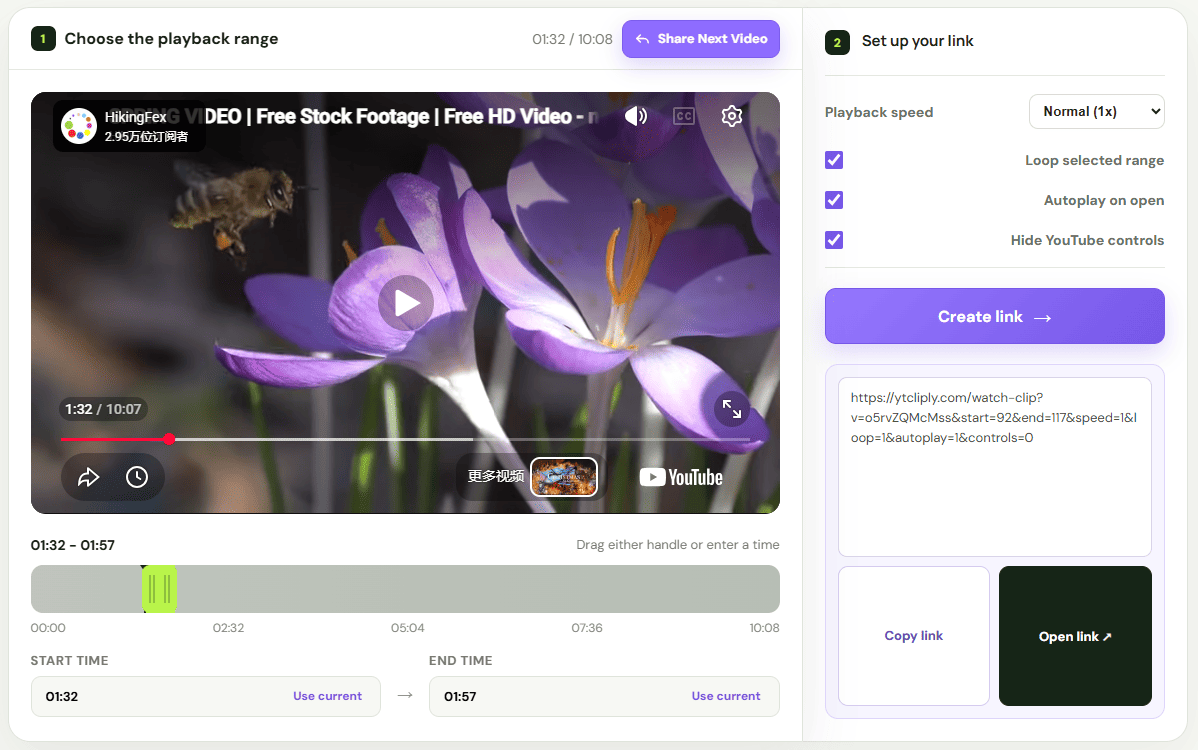
Enter a YouTube video URL and choose the start and end times. The page uses the YouTube player to control the selected playback range, then generates a page that can be shared and watched online.
Here is the basic workflow:
- Copy the YouTube video URL
- Open the ytcliply Share Clip page (/share-clip)
- Paste the video URL
- Adjust the start and end times
- Turn looping on if needed
- Choose the playback speed
- Preview the clip and copy the share link
For this example, we selected 01:32 to 01:57 and turned on looping.
Example ytcliply watch page: Open the ytcliply clip example
The link includes these settings:
- Start time: 01:32
- End time: 01:57
- Loop selected range: On
- Playback speed: Adjustable as needed
Anyone who opens the generated page can immediately watch the selected 25-second range. When the video reaches the end time, the page loops back to the beginning of the selected range.
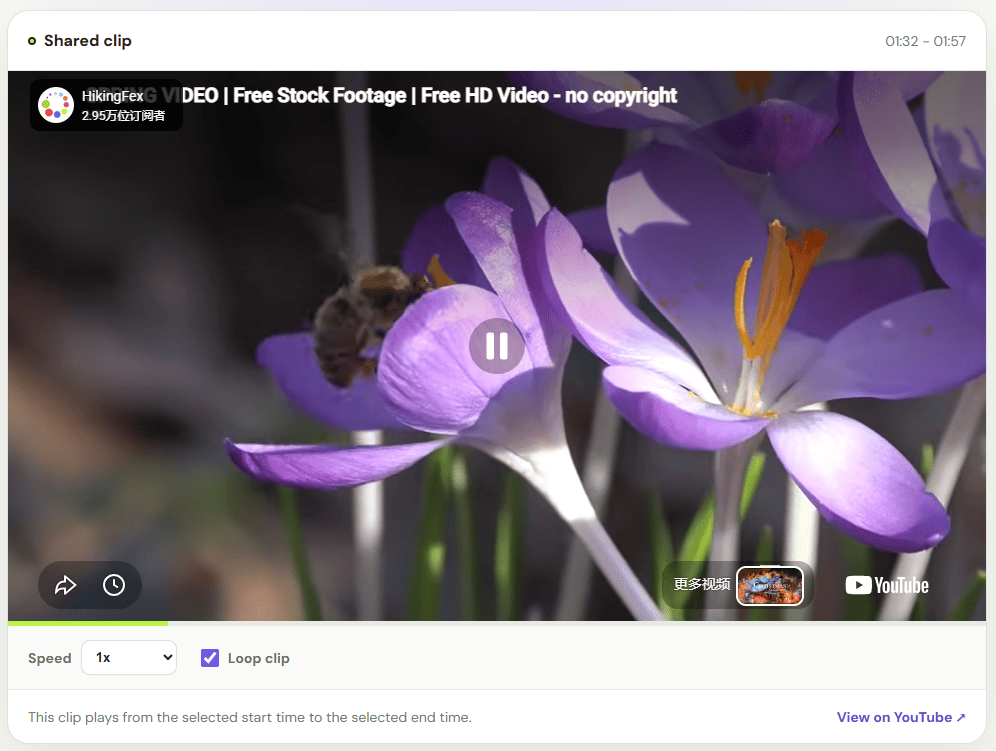
These clip pages still depend on the original YouTube video. If that video is deleted, made private, blocked from embedding, or restricted by age or region, the generated clip page may stop working.
If you want to keep a selected range long-term, watch it offline, or edit it further, use the second method.
Method 2: Download a YouTube video clip with ytcliply
This method is designed for people who want to save a clip, watch it offline, or continue editing it.
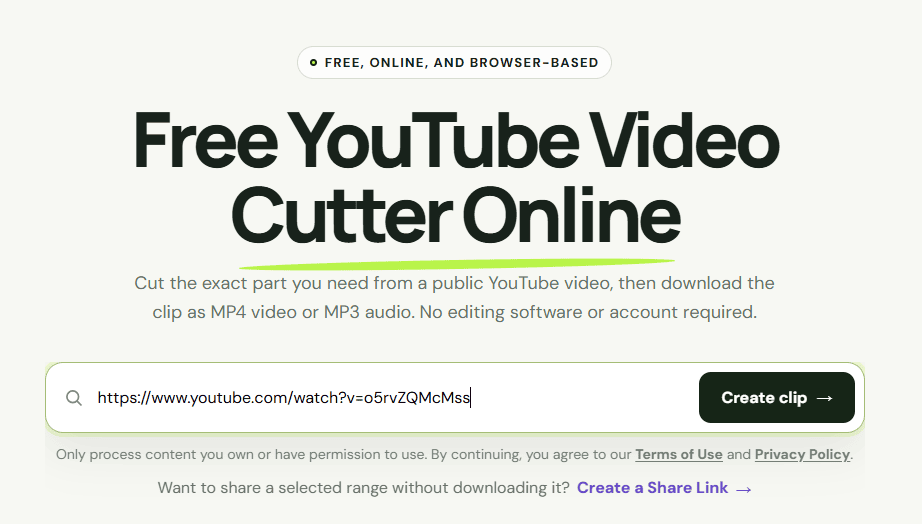
The ytcliply homepage includes a YouTube Cutter Downloader. Enter a public YouTube video URL, choose the start and end times, and download the selected range as a video clip.
You do not have to download the entire video first and then upload it to a separate online trimming tool. The range selection and download are handled in one workflow.
Step 1: Open the ytcliply homepage
First, find the video you want to process on YouTube and copy its URL.
Open the ytcliply homepage , then paste the YouTube URL into the input field.
Step 2: Select the range you want to keep
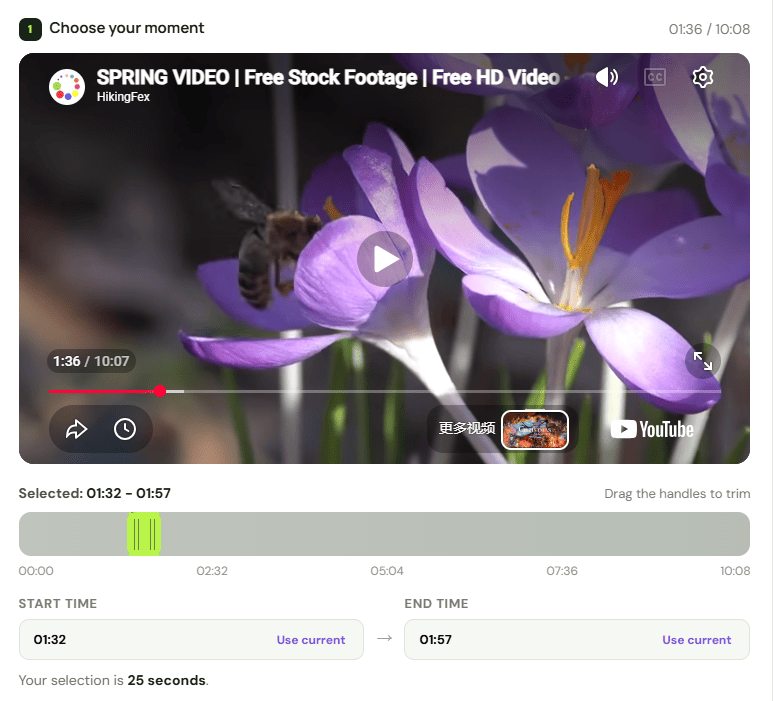
After the video loads, set the start and end points for the range you want to keep.
To match the earlier test example, use these settings:
- Start time: 01:32
- End time: 01:57
- Clip length: 25 seconds
This keeps only the part of the video between 1 minute 32 seconds and 1 minute 57 seconds.
Step 3: Download the video clip
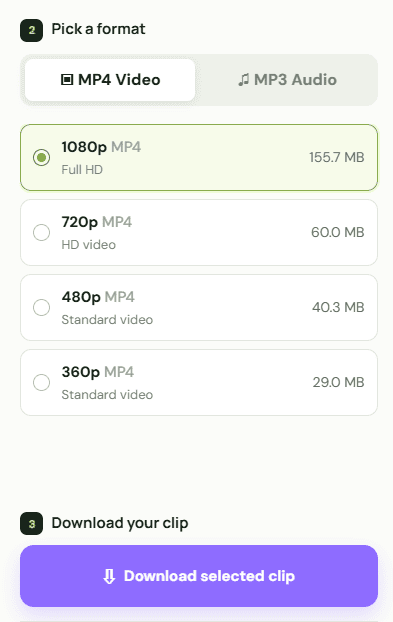
After confirming the selected range, choose a format and quality, process the clip, and download the file.
The downloaded clip can be used for:
- Watching the selected content offline
- Saving an important section from a course video
- Keeping a specific answer from an interview
- Preparing video material for a project
- Importing the clip into another editing tool
With the ytcliply YouTube Cutter Downloader, you only need to enter a video URL, select a range, and download it to create a standalone video file.
What is the difference between the two methods?
| Comparison | ytcliply Share Clip page | ytcliply download page |
|---|---|---|
| Primary use | Sharing and watching online | Saving, offline viewing, and editing |
| How it works | Enter a URL, set the playback range, and generate a share page | Enter a URL, select the clip range, and download it directly |
| Result | A shareable watch page | A standalone video clip |
| Processing | Ready to share and watch after setup | Requires time to process and download the clip |
| Depends on the original video | Yes | No, after the clip has been saved |
| Looping | Built for looping a selected range | Depends on the video player you use |
| Further editing | Not convenient | Well suited for editing |
If you only want to share and watch a short part of a video online, use ytcliply to create a clip page and adjust the loop and playback speed settings as needed.
If you need to save, watch offline, or edit the selected content, choose the start and end times in ytcliply and download the clip directly. There is no need to download the full video and upload it again.
What should you consider before using a video clip?
Before downloading, trimming, sharing, or reusing a video, make sure you have the necessary rights or permission.
Only process content such as:
- Videos you created or own
- Videos you have permission from the creator to use
- Content in the public domain
- Videos whose license clearly permits this type of use
- Content the platform or rights holder allows you to download and edit
Do not use these tools to bypass payment, privacy, membership, age, regional, or other access restrictions. Do not republish copyrighted video without permission.
Summary
After YouTube replaced clip creation for most users with its “Start at” sharing option, viewers could still begin a video at a chosen time, but they could no longer define a complete playback range the same way.
To quickly share and watch a selected moment, use ytcliply to create an online clip page with a start time, end time, looping, and playback speed. Keep in mind that the page depends on the original YouTube video and may be affected if that video’s availability changes.
To save a standalone video clip, use the ytcliply YouTube Cutter Downloader to set the start and end times and download the generated clip directly.
Together, these two methods provide practical alternatives for sharing or saving selected moments now that creating new YouTube Clips is no longer broadly available.